How to remove background noise and add subtitles in one pass
August 27, 2026
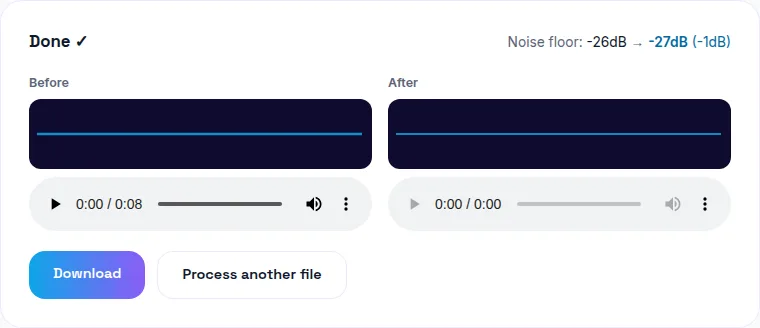
Remove background noise before generating subtitles, not after — AI transcription is more accurate on clean audio, since hiss, hum, or fan noise can get misheard as words or bury quiet speech the model needs to pick out. You can clean up your audio free here, then run the cleaned result through the subtitle generator — both free, both in your browser, no upload either time.
Why the order matters
AI transcription models work by picking speech out of an audio signal — the cleaner that signal, the more reliably the model can separate words from background noise. A hissy, humming, or fan-noise-laden recording gives the model more to work through, which shows up as misheard words, dropped syllables, or garbled sections in the resulting transcript. Cleaning the noise out first removes that obstacle before transcription even starts.
Does this need two different tools?
Not if the site you're using has both — the workflow is two steps in the same tool, not two separate websites. Drop your file into the noise-removal tool, download the cleaned result, then upload that cleaned file to the subtitle generator. No extra software, no account, no switching tabs between two different services.
Does cleaning the audio affect the caption timing?
No — noise removal doesn't change a file's length or timing, only its clarity. Whether you generate captions before or after cleaning, timestamps land in the same place. The reason to clean first isn't timing, it's accuracy: a cleaner audio signal gives the transcription model a better shot at getting the words themselves right.
Finishing the job: burning captions into the cleaned video
Once you have a cleaned audio track and a reviewed, accurate transcript, the natural last step is burning the captions directly into the video for one finished, shareable file — especially useful for platforms like Instagram or TikTok that don't support a separate caption file. See our post on burning subtitles into a video permanently for that step.
Does this work on a full-length recording?
Yes — both noise removal and subtitle generation process the entire length of whatever file you give them. A full podcast episode or lecture recording works exactly the same way as a short clip, it just takes proportionally longer to process.
The full workflow
1. Drop your video or audio file into the noise-removal tool and download the cleaned result.
2. Upload the cleaned file to the subtitle generator — AI transcribes it into timestamped captions.
3. Review the transcript for any misheard words, fix them.
4. Export as SRT/VTT, or burn the corrected captions directly into the cleaned video.
The bottom line
Two tools, two minutes, in the right order — clean the audio first, transcribe second, and you'll get a noticeably more accurate transcript than running captions on the noisy original. Start with noise removal here, free and in your browser.
Frequently asked questions
Should I remove noise before or after generating subtitles?
Remove noise first. AI transcription is more accurate on clean audio — background hiss, hum, or fan noise can get misheard as words, or make quiet speech harder for the model to pick out. Cleaning the audio first gives the subtitle generator its best shot at an accurate transcript.
Do I need two different websites/tools to clean audio and add captions?
No, not if the tool supports both — process the file through noise removal first, download the cleaned result, then run that cleaned file through the subtitle generator. Two steps, one tool, no extra software.
Will cleaning the audio change the captions' timing?
No — noise removal doesn't change the video or audio's length or timing, only its clarity. Captions generated afterward will time correctly regardless of which step happened first, but accuracy is what you're optimizing for by doing noise removal first.
Can I burn the subtitles into a video that's already had noise removed?
Yes — that's the natural last step: clean the audio, generate and review the transcript, then burn the captions into the cleaned video for a single finished file.
Does this work for a whole podcast episode, or just short clips?
Either — both noise removal and subtitle generation process the full length of whatever file you give them, so a full episode works the same way as a short clip, just taking longer proportionally.