How to shrink a video for text or email while keeping captions readable
August 27, 2026
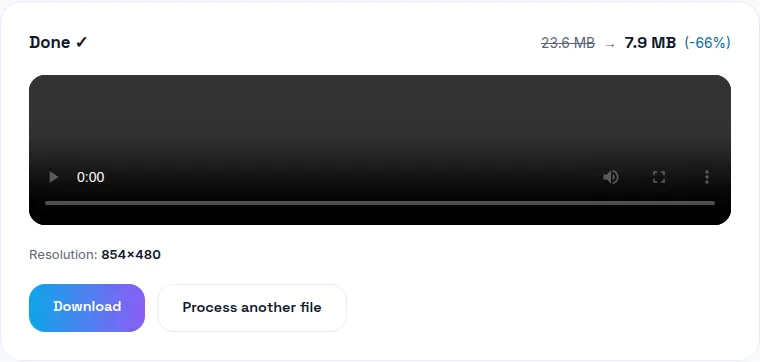
Carrier MMS limits are brutally small — AT&T and T-Mobile cap around 1MB to send, Verizon around 3.5MB — and email tops out around 25MB on most providers. Hitting those targets while keeping burned-in captions legible means compressing carefully, not just aggressively. You can compress your video free here, entirely in your browser.
The actual size limits
Text message (MMS): AT&T caps around 1MB, T-Mobile around 1MB to send and 3MB to receive, Verizon around 3.5MB. If you're texting a video, assume you need it under roughly 1MB to be safe across carriers — anything larger risks the message failing to send or getting silently compressed by the carrier into something that looks much worse than what you intended.
Email: Most providers cap attachments around 25MB (Gmail's limit, which many others match or come close to) — far more headroom than MMS, but still tight for more than a short clip at reasonable quality.
Why captions turn to mush at MMS-sized targets
Fine detail like small burned-in text needs more bitrate to stay sharp than broad footage does. Compressing hard enough to fit a 1MB MMS target is aggressive by any standard, and text is usually the first thing to blur into illegibility under that kind of pressure. Two ways around it: use a larger caption font before burning captions in, or accept a slightly bigger file size if the platform allows it.
The right order: captions first, compress last
Burn in captions, then compress once, as the final step — not compress, then add captions, then compress again. Two compression passes compound quality loss for no benefit over doing it once, after the captions are already part of the frame. See our post on compressing video without losing subtitles for the full breakdown of that ordering.
Is there a way around the size limit entirely?
Yes — a cloud link (Google Drive, Dropbox, or similar) sidesteps size limits completely, since you're sharing a link instead of the file itself. The tradeoff is the recipient has to click through rather than watching inline in their messages app, which matters for quick, casual sharing where inline playback is the whole point. For anything longer than a very short clip, or when quality matters more than instant playback, the link is usually the better call.
Practical targets to aim for
For texting: aim under 1MB to be safe across all major carriers. For email: you have much more room, up to roughly 20MB to leave some margin under the 25MB cap. In both cases, resolution matters as much as bitrate — a shorter clip or a lower resolution (720p instead of 1080p) gives you more bitrate budget to keep captions readable within the same file size ceiling.
The bottom line
MMS limits are tighter than most people expect — often under 3.5MB, sometimes under 1MB — and hitting them while keeping captions readable means compressing once, last, after captions are already burned in. Try WavyVid's compress tool free, pick your target size, and preview before you send.
Frequently asked questions
How small does a video need to be to send as a text message?
It depends on the carrier, and the limits are tight: AT&T caps MMS at around 1MB, Verizon around 3.5MB, T-Mobile around 1MB to send and 3MB to receive. If you're texting a video, assume you need it under roughly 1MB to be safe across carriers.
What's the file size limit for email attachments?
Most providers cap attachments around 25MB (Gmail's limit, which many others match or are close to) — much more headroom than MMS, but still tight for anything beyond a short clip at reasonable quality.
Why do my burned-in captions turn to mush at these tiny sizes?
Fine detail like small text needs more bitrate to stay sharp than broad footage does — when you compress hard enough to hit a 1MB MMS target, text is usually the first thing to blur into illegibility. A larger caption font, or accepting a slightly bigger file size, are the two ways around this.
Should I compress first or add captions first?
Add and burn in captions first, then compress once, last. Compressing twice (once before captions, once after burning them in) compounds quality loss for no benefit.
Is there a way to send a video without hitting these limits at all?
Yes — a cloud link (Google Drive, Dropbox, etc.) sidesteps size limits entirely, at the cost of the recipient needing to click through rather than watching inline. For quick, casual sharing where inline playback matters, staying under the size limit is still worth it.