Why is my video so quiet, and how do I fix it without distortion
August 19, 2026
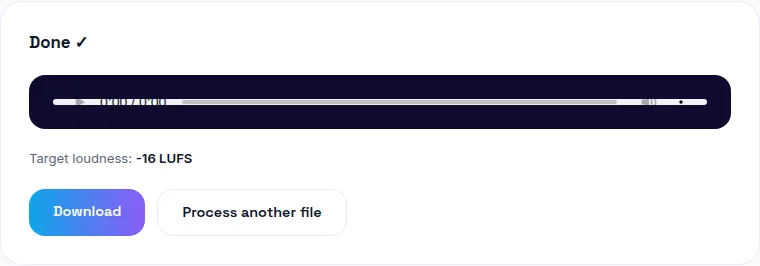
Cranking your own playback volume doesn't fix quiet audio for anyone else watching — and blindly boosting the file's volume too far turns quiet audio into crackly, clipped audio. The safe fix is loudness normalization, which raises perceived volume to a consistent target while checking peak levels so it doesn't distort. You can fix quiet audio free here, entirely in your browser.
Why the audio is quiet in the first place
Usually one of three things: the microphone was too far from the source, recording gain was set conservatively low to avoid clipping during the shoot, or the original source material was just recorded quietly. None of these get fixed by turning up your own playback volume — that only changes what you hear, not what's actually stored in the file everyone else will play.
Boosting volume vs. normalizing loudness
Boosting (gain) scales the entire file louder by a fixed amount. It's simple, but risky — if any part of the audio was already close to peak, boosting pushes it over and causes clipping.
Loudness normalization measures perceived loudness across the whole file (in LUFS) and adjusts to hit a specific target, checking that peaks stay under a safe ceiling in the process. It's solving a related but different problem — consistent loudness, not just "louder" — and it's the safer default because it accounts for clipping risk automatically.
Why boosting too far causes distortion
Digital audio has a hard ceiling — 0dB, the maximum level a file can represent. When a boosted waveform tries to exceed that ceiling, the peaks get flattened off instead of continuing to rise, which is heard as harsh crackling or distortion. This is called clipping, and once it's baked into a file, it can't be undone — there's no way to recover the part of the waveform that got cut off.
The safe amount to boost is roughly the gap between your audio's current loudest peak and that 0dB ceiling. A tool that shows you the resulting peak level — or automatically limits to prevent exceeding it — removes the guesswork.
When your audio has both quiet and loud sections
A flat volume boost raises the loud parts right along with the quiet parts, which doesn't actually solve unevenness — it just makes everything louder proportionally, loud parts included. What actually helps here is compression (which narrows the gap between quiet and loud sections) or loudness normalization (which targets overall perceived loudness rather than a uniform multiplier). If you have wildly inconsistent levels — a quiet intro, a loud interview segment — normalization gets you much closer to something a viewer won't need to ride the volume knob through.
What loudness target to aim for
-16 LUFS is the standard podcast target; -14 LUFS matches what YouTube and most social platforms normalize toward. See our full breakdown in what LUFS should your podcast or video be for the platform-by-platform detail — this post is specifically about the boost-vs-normalize distinction and avoiding distortion; that one covers picking the right target number.
The bottom line
Don't just crank the volume slider — that risks clipping the moment any part of your audio was already close to peak. Try WavyVid's loudness tool free to bring quiet audio up to a safe, consistent level without distortion.
Frequently asked questions
Why is my video's audio so quiet in the first place?
Usually the microphone was too far from the source, gain was set low to avoid clipping during recording, or the source material itself was recorded quietly — none of which get fixed just by turning up your own playback volume.
What's the difference between boosting volume and normalizing loudness?
Boosting volume (gain) just scales the whole file louder by a fixed amount — simple, but risks clipping if any part was already close to peak. Loudness normalization measures perceived loudness and adjusts to hit a specific target (like -16 LUFS), which is more deliberate but is solving a slightly different problem — consistency across files, not just "make this one louder."
Why does boosting volume make my audio sound distorted or crackly?
That's clipping — when a boosted waveform exceeds the maximum level a digital file can represent, the peaks get flattened, which sounds like crackling or harsh distortion. It happens when you boost too aggressively without checking how close the original audio already was to its ceiling.
How much can I safely boost audio without distortion?
Check the loudest peak in your original audio first — you can safely boost by roughly the gap between that peak and 0dB (the ceiling) before clipping starts. A tool that shows you the resulting peak level, or auto-limits to prevent clipping, takes the guesswork out of this.
My video has both quiet and loud parts — how do I fix that?
A flat volume boost makes the loud parts even louder along with the quiet parts. What you actually want is compression or loudness normalization, which narrows the gap between quiet and loud sections instead of just scaling everything by the same amount.